This Palworld guide details how you can install mods in the game and lists some of the best mods available for the game currently. The guide also mentions how to enable them through your Steam Workshop and create a backup of your world safely. Mods can change the way you experience Palworld 1.0 by adding features like a first-person camera, mini-map, collectible tracker, remote fast travel, expanded base range, and visual improvements.
How to Back Up Your Palworld Save
Before you go ahead and install mods, it is a good idea to create a copy of the world you plan to use. As Mods may sometimes cause save problems, it is recommended to use a duplicate on which you can experiment without risking your original world.
The steps to back up your Palworld Save are as follows:
- First, completely close Palworld. Then, press the Windows Key + R to open the Run dialog box. Type: %localappdata%\Pal\Saved\SaveGames and press OK. This will take you to the folder where your Palworld saves are stored.
- Here you will see a folder containing a number that corresponds to your Steam profile. Open this folder to find your different Palworld worlds. If you have created several worlds, you may need to check the folders to identify the one you want to duplicate.
- Once you have identified the correct one, copy that folder and paste it in the same location. Make sure that you rename the copied folder so you can easily differentiate it from the original.
- Now, when you open Palworld again, the copied save should appear as another world in your world list. You can then use this version when testing mods while keeping your original save as a backup.
How to Install Mods Through Steam Workshop
Installing mods in Palworld is fairly easy, once you know how to do it.
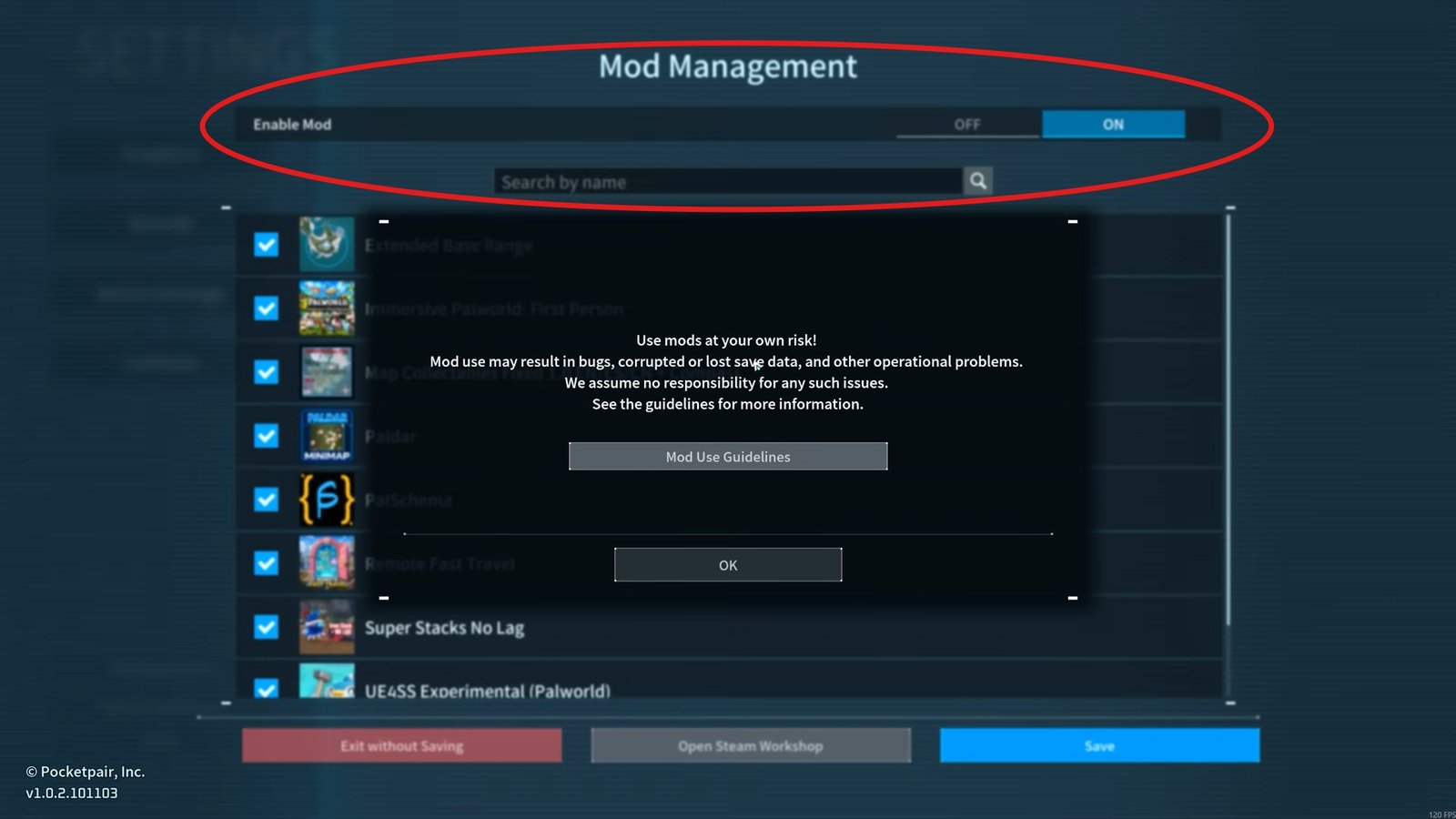
- After you have backed up your save, go to the Palworld main menu and open Options. In the bottom left corner, you’ll find Mod Management. Open it and turn on the option to enable mods.
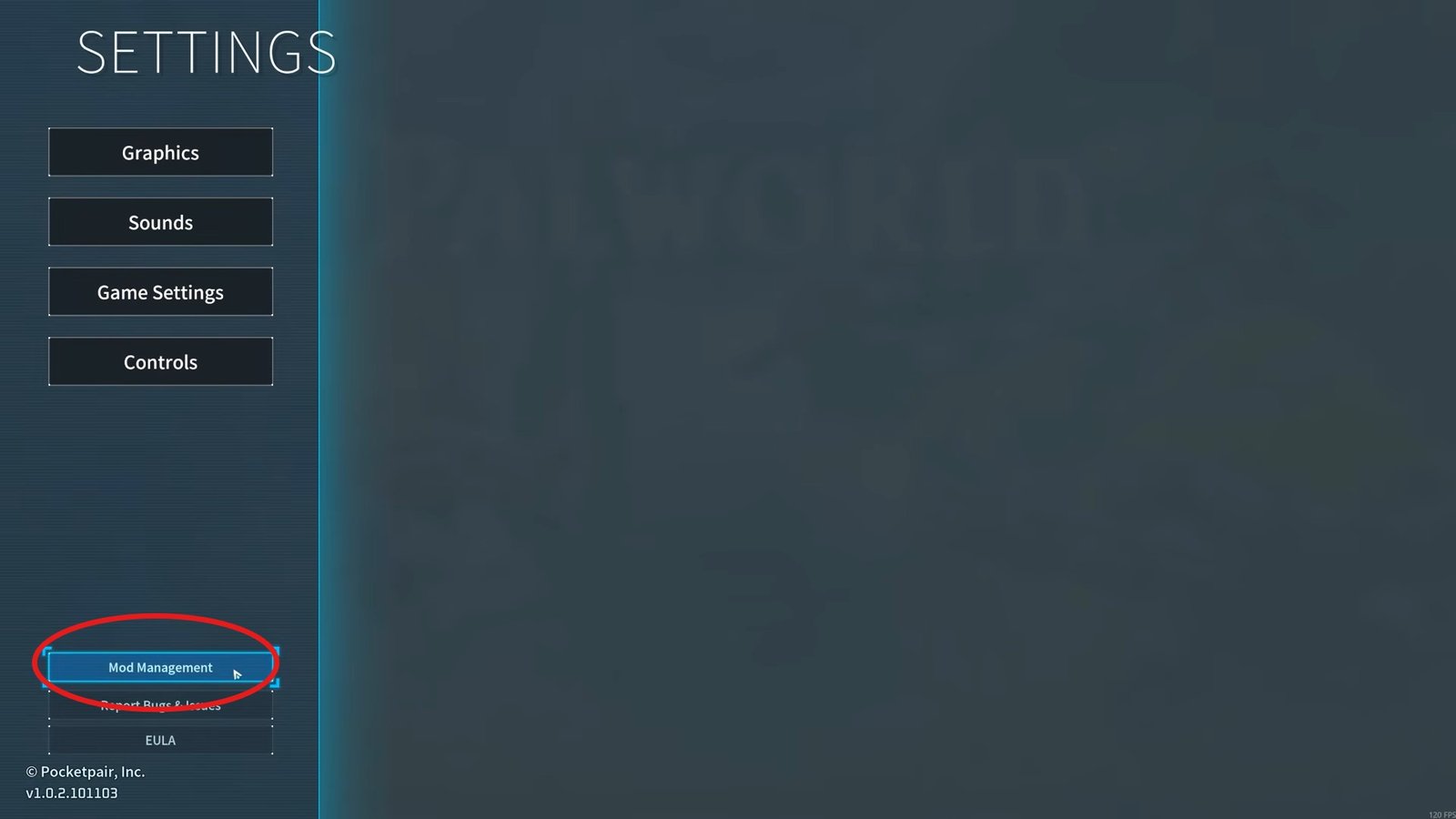
- You will see a warning about using Mods and how it can possibly lead to losing data or damaging your world. This is why it is recommended to use your duplicated save rather than your original world.
- Open the Steam Workshop, which will take you directly to the Palworld Workshop on Steam, where you can browse different Mods. You will also be able to sort the Mods based on the most popular mods, the most subscribed mods, or recently updated ones.
- After finding a Mod you want, hover your cursor over it and select the plus button to subscribe. This will add the Mod to your Steam files.
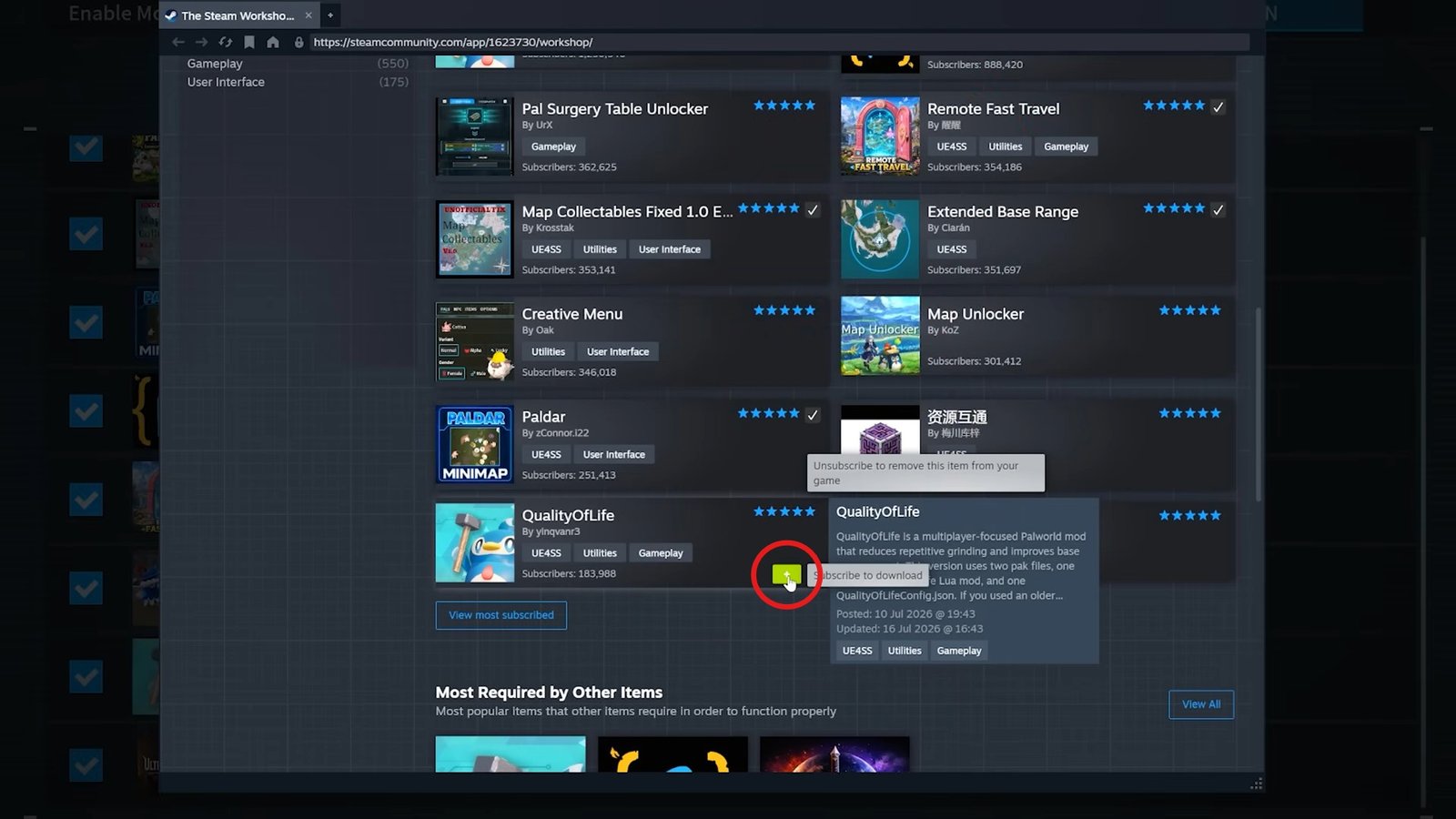
- After subscribing, return to Palworld and open Mod Management again. You will see that the installed Mods will appear in the list. Select the check mark beside the mods you want to use and press Save. The game will restart to apply your changes.
- If a mod doesn’t appear immediately, close the game and launch it again. You may also need to subscribe to additional files or mods when a particular mod lists them as requirements.
Best Mods for Palworld
Now, we will jump into the best mods that you can install in Palworld.
First-Person Mod
The First Person Mod lets you experience Palworld from a first-person point of view by changing the camera.
You can press the F7 key to switch between first-person and third-person POV’s. Moreover, you can hold Alt and use the mouse wheel to adjust the FOV. This lets you decide how zoomed in or out the first-person camera feels.
There are also additional settings available in the game’s Graphics options. You can enable first-person riding, adjust the FOV, and change the amount of camera bobbing.
The mod can also be switched between first- and third-person views while using mounts. This gives you the option to use whichever perspective works better for a particular situation.
Paldar Mini Map Mod
The Paldar Mod will add a mini map on your screen. This will let you keep track of your direction without the need to open the main map repeatedly.
To change the zoom level of the mini-map, Press Z. Moreover, can use L to move it between different pre-set positions, while H hides or displays the mini map. By pressing K, you will enter the edit mode, which will let you customize the map’s position and size further. You can then use the arrow keys to move the mini map around the screen and the mouse wheel to make it larger or smaller.
You may also need additional files for some Mods to function. For example, certain mods may ask you to install supporting mods such as UE4SS or Pal Schema. If Steam shows a required dependency, make sure you subscribe to it as well.
Map Collectibles Mod
The Map Collectibles Mod will especially help you if you’re trying to find collectibles and other important locations around the world. For example, it can be used to locate Lifmunk Effigies; the mod will let you see their positions on the map and compass, allowing you to travel directly towards them. Once an item has been collected, the map can mark it as completed.
You can also choose to display collectibles that you’ve already found. This makes it easier to see which locations you’ve completed, and which ones still need to be visited.
The mod can also show Active dungeons, Ancient Ruins, nearby chests, outposts, eggs, fruit trees, and junk piles. The nearby options can display these locations around your current position, making exploration and collectible hunting easier.
Other Useful Mods
Several other mods are related to convenience, base building, performance, and graphics.
- Extended Base Range will increase the area around your Palbox, which gives you more space to expand your base and construct additional structures.
- Remote Fast Travel allows you to fast travel from your current location instead of requiring you to stand at a normal fast travel point or inside your base. This can be useful when you’re exploring and want to quickly reach another location.
- Super Stacks No Lag helps in boosting your performance when many items are lying around. Instead of having large numbers of individual items creating additional lag, the items can be grouped into stacks.
- An Ultra Graphics mod alters the game’s lighting and makes the environment look more detailed, particularly at night.
With the backup created and the mods enabled through Steam Workshop, you can use these additions to change how you play Palworld 1.0. These mods provide a way for you to customize the playing experience, whether it is building more space, a different camera perspective, faster travel, etc.
That is all for this guide. Additional Palworld guides are linked below:
- How to Get Silvance in Palworld 1.0
- Best Early to Mid-Game Base Building Locations in Palworld 1.0
- How to Get Soralite in Palworld 1.0
- How to Farm Honey in Palworld 1.0
- Palworld Best Pals Guide – Best Pals for All Jobs & Breeding
- Palworld Jetragon Guide – Where to Find, How to Catch & Breed
- Palworld Nitewing Guide – How to Catch, Create its Saddle & Breed
This concludes our Palworld guide on how you can install mods in the game easily. If you have some cool mods to share with us, do let us know in the comments section below.