As video quality shifts from 1080p to 4K and 8K does not seem too far, video editing is getting more and more demanding as well. For someone who creates video game content 24/7, be that written or video, video editing softwares are like my hands that I need to use every day whether I am in my office or on the go. For this very purpose, I cannot rely on just one software for everything because every software excels in one bit while the other one suffers in that very bit. I was recently introduced to a brand-new video editing software called VideoProc by Digiatry and this is my review of VideoProc.
VideoProc is a lightweight yet powerful video editing tool. One of the prominent features of VideoProc is that along with using the processor for video rendering, it also uses the power of your GPU and calls it Full Hardware Acceleration. This Full Hardware Acceleration includes both your CPU Acceleration as well as the GPU Acceleration. Officially, VideoProc is supposed to give a 47x boost in video rendering but I am sure that this will depend on the actual hardware that is being used for video rendering and editing. The more powerful your CPU and GPU are while using VideoProc, more seconds it will shave off your video rendering by using the combined power of your GPU and CPU.
For my review, I tested VideoProc on a system running AMD Ryzen 7 3700X with an AMD R9 290 as well as an Nvidia 2070 Super and 32GB of Ram. While the processor was the same for both scenarios, I wanted to actually see how much better the software would actually perform with an older GPU as well as a modern GPU. VideoProc comes with full support for both AMD and Nvidia GPUs so a small hardware check is all you need for setting the correct hardware for the video rendering. Both of my GPUs worked brilliantly with the software and the GPU usage remained around 90-85% showing that the software was fully utilizing the GPUs during the renderings. Surprisingly, the processor was sitting idle for most of the time as the GPU worked for the rendering.

Coming to performance, I ran the same videos, with the same video editing and the same render output options for most of my tests. While the R9 290 certainly performed really well despite its age, the 2070 Super was on another level. It delivered the renders around 40% – 45% faster than the R9 290. I have seen most of the professional video editors use 2080ti or even the Titan as their main GPU so I can be sure that video rendering would be even faster on them. This additional speed also did not affect any sort of video quality as well. Every video I completed was similar to most of my 4K edits for the website with my normal video editing software such as Adobe Premiere Pro or Cyberlink PowerDirector.
While VideoProc is excellent for rendering videos quickly with the added GPU acceleration, it lacks advanced visual and technical editing tools that you find in Adobe Premiere Pro or Cyberlink PowerDirector. While conversion is a good and easy mechanic of VideoProc, the Toolbox that houses most of video editing features are pretty basic. You will find simple editing tools such as Trim, Rotate, Split, Deshake, Denoise, and GIF, etc. While these are handy tools but when compared with the AAA video editors, these barely scratch the surface when it comes to video editing.
Depending on your preferences, you can allow VideoProc to use your GPU for rendering or not. If you want to opt for the traditional CPU only rendering, you can simply deselect GPU acceleration and it will render the video using CPU only but naturally, the rendering times will increase as the whole burden shifts back to the processor and your PC will also begin to hang as most of the processing resources are allocated to the rendering similar to most video editing software. This comes as an option but if are using VideoProc, then it would only make sense that you use the power of your GPU to speed up the rendering process and make sure that
Coming to features, VideoProc is loaded with them. Apart from the main video section where you can edit, compress or convert video files, you also have the DVD section where you can digitize your DVDs. Whether you want to save your DVDs in the form of ISO images, mp4 files or even mp3 files, VideoProc can help you do that. You can also create backups of your DVDs using this handy option. Downloader is yet another useful feature that allows you to download videos from the internet straight to your PC and that too in the format that you want it in. It gives you the option to download videos from YouTube, Facebook, and many other sites.
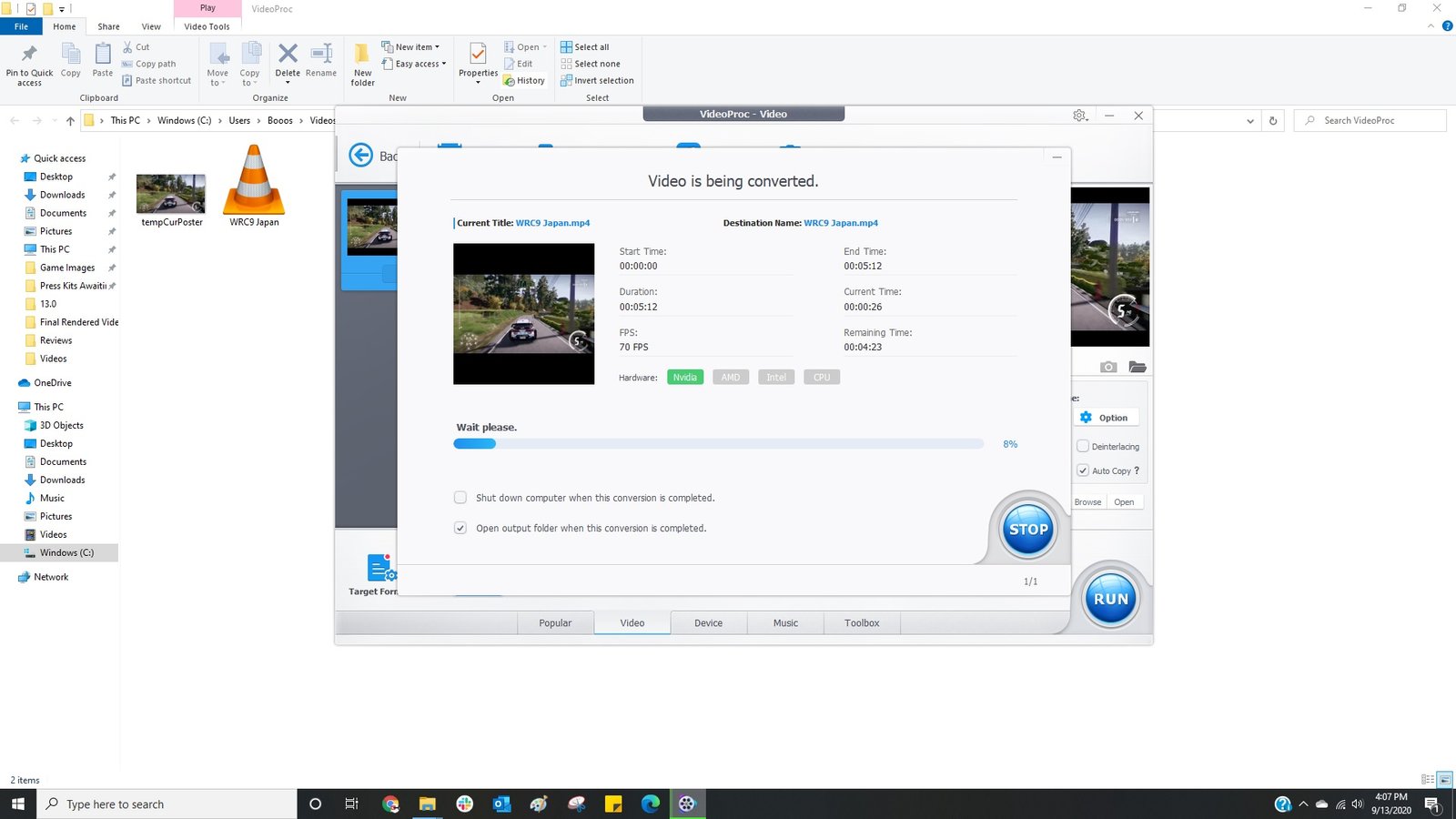
All you need to do is find the link of the video that you want to download, place it in the tool, and let it analyze. Once done, you can pick whatever output resolution you want to download the video in and let the tool handle the rest. Finally, VideoProc is also a video recorder and it can record videos from your computer’s screen or webcam whether you are generally using it or even playing video games. You can also add voiceovers, highlight things in the video, and even add text on the fly in the recording videos. Along with this, you can directly use the software for videos out of your drones, mobile phones, and cameras making it a convenient tool for editing videos if you remain on-the-go and do not have time for professional editing all the time.
Final Verdict:
Calling VideoProc just a video editor would be an understatement. It is more than just a video editor as it is a tool for various related activities. If you are just starting in video editing and want a tool that offers a simple UI, easy-to-learn editing, and is not too technical, then VideoProc is just the right video editing software for you. Not only is it simple to use, but it is extremely powerful as well and does not compromise on quality in any way. Its GPU accelerated video editing certainly gives it a necessary boost that you can use to shave some time off the final renderings. I’ve been using VideoProc for at least a month now and while it certainly lacks the technical features of a fully-featured video editing software such as Adobe Premiere Pro, for basic video editing and even some advanced features, combined with tons of extra features that it comes with, I can easily recommend VideoProc to a large number of editors out there who are either just starting in video editing or even professionals.